
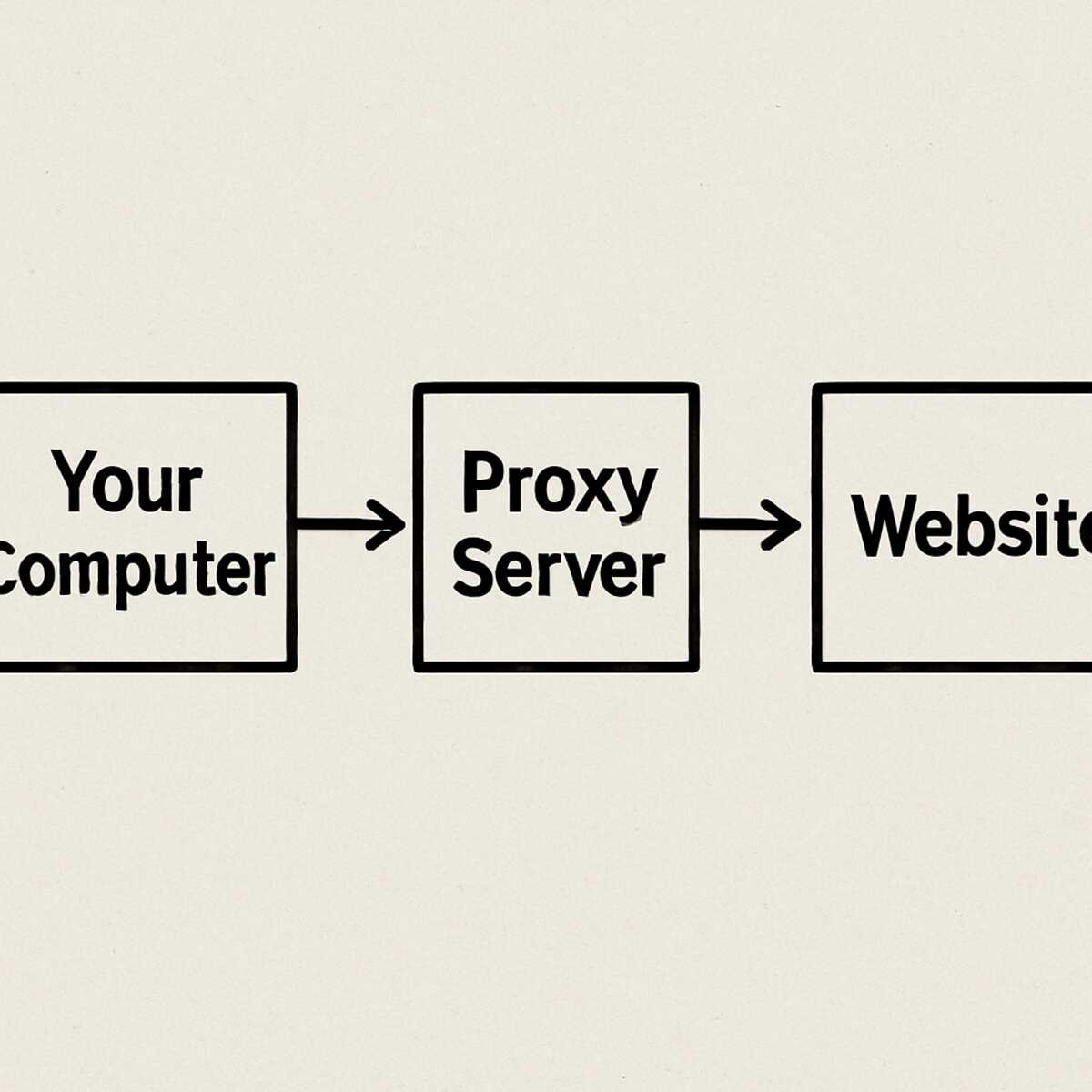

Ever stumbled across the ‘Proxy Settings’ in your Wi-Fi or browser menu and wondered what those empty boxes are for? You’re not alone. For most people, it’s a confusing, technical-looking corner of their computer they’ve learned to ignore. This guide will finally explain what a proxy is and what it does, in simple terms you can actually use. Find the best proxies for linkedin.
To understand a proxy server, it helps to first see how the internet typically delivers a webpage. Think of it like ordering a pizza. Your computer (the customer) makes a call to a website’s powerful computer (the pizza shop) and places an order for a specific webpage.
To deliver that order, the pizza shop needs your home address. In the same way, the website’s server needs your computer’s unique “delivery address” online to send the webpage back to you. This digital address is called an IP address, and in practice, every single website you visit automatically receives it. This simple exchange is the foundation for how the internet works and the first step to understanding online privacy.
What is a Proxy Server and How Does It Work?
Ordinarily, when you visit a website, your computer makes a direct request to that site. It’s a simple, two-way conversation where the website sees your computer’s unique public address (its IP address) and sends the data straight back to you. This is the standard way the internet works, but it means your digital “home address” is visible to every site you connect with.
A proxy server fundamentally changes that conversation by acting as a helpful intermediary. Instead of you talking directly to the website, you send your request to the proxy first. Think of it like hiring a personal shopper. You don’t go to the store yourself; you give your shopping list to the shopper, who then goes to the store on your behalf. In the digital world, this “shopper” is the proxy server.
When your proxy “shopper” arrives at the website, the website only sees the proxy’s IP address, not yours. This provides privacy and is one of the simplest IP address masking techniques. It fulfills the request and hands the data back to the proxy, which then forwards it to you. The website you visited never knows your computer’s real location or identity; it only ever interacted with the middleman. This simple act of rerouting your traffic is the foundation for a proxy’s most powerful abilities, starting with its knack for getting around digital roadblocks.
Top Benefit #1: How a Proxy Unlocks Restricted Content
That frustrating “Access Denied” message is a common sight on school or office networks. This happens because the network itself has a blocklist, like a security guard instructed not to let anyone visit certain addresses, such as social media or video streaming sites. When you try to connect directly, the network guard sees your destination, checks its list, and turns you away. This is a classic example of a network-level restriction, where the rules aren’t set by the website you want to visit, but by the network you’re currently using.
This is where the proxy’s role as a middleman becomes a powerful advantage. Because you’re not connecting directly to the blocked website, the network’s security guard doesn’t see your final destination. It only sees that you are sending a request to the proxy server—an approved, generic address. The proxy then fetches the content from the blocked site and delivers it back to you. The network is satisfied because it only saw you talk to an approved server, and you get the content you wanted. This simple redirection is one of the main benefits of using a web proxy and explains why a school proxy can grant access to otherwise forbidden sites.
A proxy excels at navigating around these local network rules, which is key to bypassing such restrictions effectively. However, it can’t solve every block. If a specific website has banned your personal account, for instance, a proxy won’t help; the site will still recognize your login. While getting around blocks is a major draw, many people use proxies for another reason: to hide their activity from the websites themselves.
Top Benefit #2: Should I Use a Proxy for Browsing Privacy?
Beyond just getting around blocks, a proxy provides a basic layer of privacy by hiding your computer’s unique identifier—its IP address. Think of your IP address as the digital equivalent of a return address on a letter; it tells every website you visit your approximate geographical location. When you use a proxy, the website doesn’t see your personal address. Instead, it sees the proxy’s address. This fundamental process, known as IP address masking, is a simple way to browse more anonymously and prevent sites from logging your location.
This becomes particularly useful on public Wi-Fi. Imagine you’re at a coffee shop and want to research a sensitive topic without leaving a digital trail that connects your browsing back to that specific café. If you’re asking, “should I use a proxy for browsing?” in this scenario, the answer is that it can help. By routing your connection through a proxy server located somewhere else entirely, the websites you visit will have no record of your activity originating from that public network, preventing them from easily tracking your physical whereabouts.
This highlights the crucial difference between privacy and security. A proxy gives you privacy by hiding your identity, much like sending a postcard from a P.O. box. The recipient knows it didn’t come from your home, but the mail carrier—and anyone who intercepts it—can still read the message. Most standard proxies do not encrypt your data. This limitation is the key factor when comparing proxy vs vpn for privacy. If you need to hide both who you are and what you’re doing, you’ll need a more secure tool.
The Critical Difference: Proxy vs. VPN for Your Privacy
While a proxy acts like a simple mail-forwarding service for your web browser, a VPN (Virtual Private Network) provides a much higher level of protection for your entire device. If a proxy is like sending an open postcard from a P.O. box, a VPN is like putting all your mail inside a locked, armored truck. Not only does it hide your starting point, but nobody can peek at the contents along the way.
The key difference is encryption. A VPN creates a secure, encrypted “tunnel” for all your internet activity. This means everything you do online—browsing, emailing, streaming, gaming—is scrambled and unreadable to anyone who might try to intercept it, including your internet service provider or hackers on public Wi-Fi. Most standard proxies do not offer this robust encryption, leaving your actual data vulnerable.
Beyond security, the scope of protection also varies. The benefits of a web proxy are typically limited to a single application, like your web browser. A VPN, on the other hand, secures the connection for your entire computer or phone.
| Feature | Proxy Server | VPN (Virtual Private Network) | | :— | :— | :— | | Scope | Usually just one app (e.g., your browser) | Your entire device’s internet connection | | Encryption | Often none; data is readable | Almost always strong encryption | | Best For | Getting around simple content blocks | Total privacy and online security |
So, which one should you choose? If you’re simply trying to watch a geo-blocked video, a proxy might do the trick. But if you’re asking, “should I use a proxy” for genuine security on public Wi-Fi or to keep your online activity private from snoops, a VPN is the clear winner. It offers comprehensive protection that a basic proxy can’t match.
Where Do You Find Proxy Settings on Windows 10/11?
Now that you understand what a proxy is, you might wonder where this mysterious setting lives on your computer. If your work or school has ever handed you a set of numbers and told you to “configure the proxy,” this is where you’d go. Finding the manual proxy setup screen in Windows is straightforward.
Just follow these simple steps:
- Open your Start Menu and click the Settings gear icon.
- In the Settings window, select Network & Internet.
- From the menu on the left, click on Proxy.
- Scroll down until you see the Manual proxy setup section and turn it on.
Here you’ll find two main boxes: ‘Address’ and ‘Port’. Think of it like a mailing address. The Address is the proxy server’s street address on the internet (e.g., proxy.yourcompany.com). The Port is like the specific apartment or office number at that address (e.g., 8080). Your computer needs both to send your request to the right place. You don’t have to guess how to find your proxy address and port; these details are always provided to you by the service administrator.
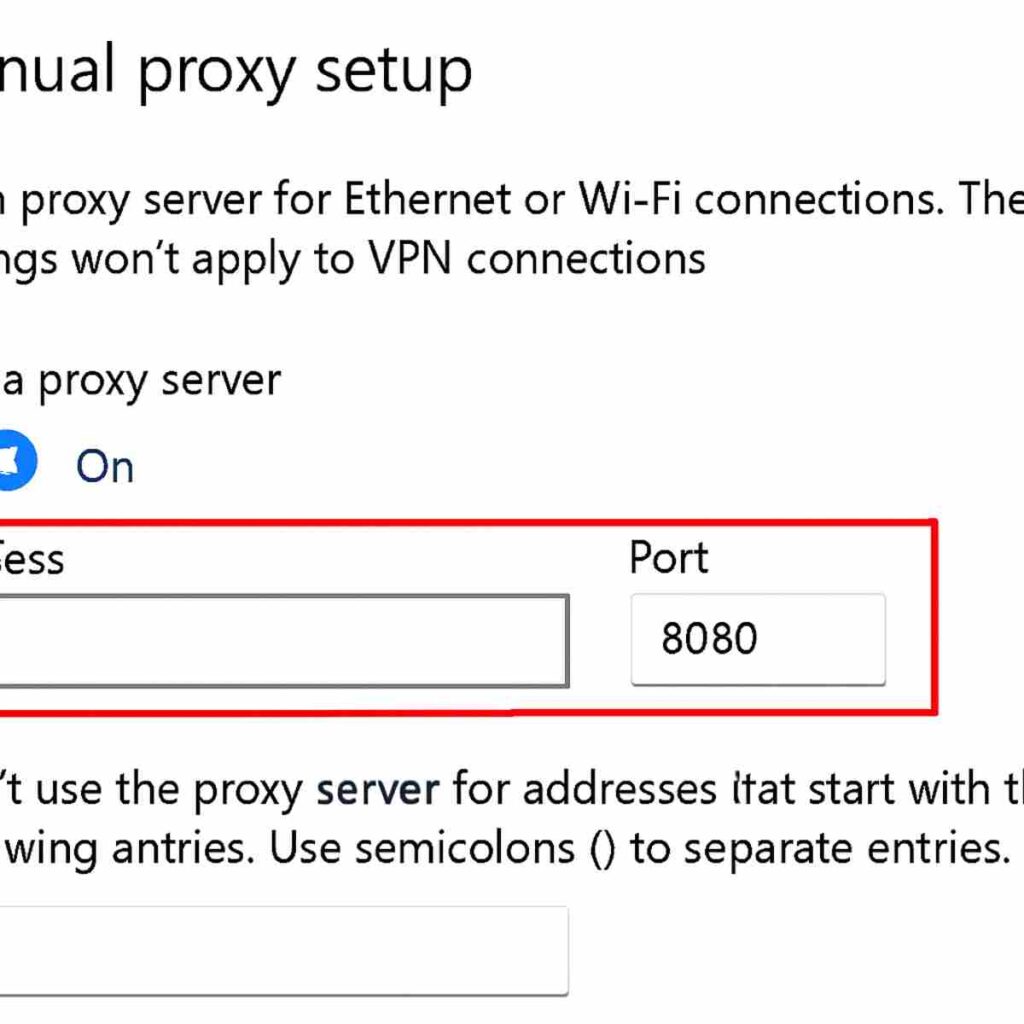
Once you enter the information and save, your Windows applications will start routing their traffic through the proxy. But what if you only want to use a proxy for your web browser and not your entire computer? Many browsers, like Google Chrome, have their own way to handle these settings.
How to Set Up a Manual Proxy in Google Chrome
What if you only want to use a proxy for your web browsing, not for every app on your computer? Many people assume they can perform a manual proxy setup for Chrome directly within the browser’s settings. However, Chrome—along with other major browsers like Microsoft Edge—handles this in a way that might surprise you. They are designed to “borrow” the proxy settings directly from the operating system.
Finding the option is simple, but it acts as a shortcut. In Chrome, go to Settings, search for “proxy” in the top search bar, and click on the result labeled Open your computer’s proxy settings. Instead of opening a new tab in your browser, this will launch the very same Windows or macOS proxy settings window we just discussed. You’re essentially using Chrome as a quick link to get to your computer’s central proxy configuration.
This design prevents you from having to enter the same proxy address and port in multiple applications. By using the main system setting, you ensure a consistent connection across any program that needs it. But when you’re looking at your system’s proxy screen, you might notice another option besides the manual setup—something about an “automatic proxy configuration” or “setup script.”
What Is an “Automatic Proxy Configuration Script”?
That other option you likely saw in your computer’s proxy settings—the one asking for a “setup script” or “configuration address”—is a more advanced way of handling things. Think of it this way: a manual proxy is like giving a personal shopper one address to go to for all your errands. An automatic proxy configuration script, however, is like giving that shopper a detailed list of rules: “For this website, go directly. For that one, use this specific proxy. For everything else, use a different one.”
This level of control is rarely needed for home use. Instead, it’s a powerful tool for large organizations like corporations and universities. They use these scripts to manage their network traffic efficiently, allowing them to apply different security and access rules depending on where an employee or student is trying to go online. For example, they might route requests to internal company sites differently than requests to public websites like Google or YouTube.
For personal use, you should always leave this field blank unless your IT administrator at work or school has explicitly given you a script address to enter. It’s a specialized tool for managed networks, and pasting in a script from an unknown source can be a security risk.
HTTP vs. SOCKS5 Proxies: Which One Do You Need?
When you start looking at proxy services, you’ll quickly notice a few different “types” being offered, most commonly HTTP and SOCKS5. Think of them as two different kinds of personal shoppers with different skill sets. Choosing the right one is easy once you know what they specialize in.
An HTTP proxy is the web browsing specialist. It’s designed to understand and handle only one kind of traffic: the kind that comes from your web browser. Because it’s focused on this single job—fetching web pages, images, and other browser-based content—it’s a simple and effective tool for unblocking websites or masking your web activity. However, it can’t help with anything outside your browser, like a video game or a file-sharing app.
In contrast, a SOCKS5 proxy is the all-purpose assistant. It’s more advanced and versatile, capable of handling almost any kind of internet traffic from any application, not just a web browser. This makes it the superior choice for more complex tasks. The decision between http proxy vs socks5 simply depends on your goal:
- HTTP Proxy: Best for basic web browsing.
- SOCKS5 Proxy: Best for gaming, streaming, or other non-browser apps.
While picking the right type is important for getting your task done, it doesn’t tell you the whole story about privacy. The next crucial question is how much a proxy actually hides your identity.
Anonymous vs. Transparent Proxies: How Hidden Are You Really?
Just because you’re using a proxy doesn’t automatically mean you’re invisible. Think of it like sending a messenger: the level of secrecy depends entirely on the instructions you give them. Some proxies are designed to announce who they are, while others specialize in keeping your identity under wraps. This distinction is the most important factor when considering if you should I use a proxy for browsing for privacy reasons.
Many networks, especially at schools or offices, use what’s called a transparent proxy. This type of proxy acts like a gatekeeper for the network, filtering content or improving speed, but it’s not built for privacy. It openly tells the websites you visit, “Hello, I’m a proxy server, and I’m making this request on behalf of a user at this specific location.” It offers no IP address masking techniques because its job is to manage traffic, not hide you.
For genuine privacy, you need an anonymous proxy. This is the type that acts like a true disguise, intentionally hiding your computer’s real address (your IP address) from the websites you connect to. When you use an anonymous proxy, the website only sees the proxy’s address, keeping your own location and identity private. The difference in the transparent vs anonymous proxy debate is clear: if you want to remain hidden, only an anonymous proxy will do. But this raises a crucial question: where do you find a safe one?
The Dangers of “Free Proxy Server Lists”
After learning about anonymous proxies, your first instinct might be to search for a “best free proxy server list.” These lists are everywhere, offering instant privacy at no cost. While tempting, this is one of the most dangerous routes you can take. Handing your data to an unknown, free service is like letting a stranger handle your personal mail—you have no idea if they’re reading it, copying it, or using it for their own benefit.
So why would someone offer this powerful service for free? In most cases, if you aren’t paying for the product, you are the product. The owners of these free proxies can monitor and keep records—a process called data logging—of every single website you visit. They see your search history, the articles you read, and the videos you watch. This detailed profile of your online life can then be sold to advertisers or other third parties.
The risks go far beyond just being tracked. Because all your information flows through their computer, a malicious proxy operator can actively eavesdrop on your connection. For any website that isn’t properly secured, they can steal the usernames, passwords, and personal details you type in. Some have even been caught injecting their own ads or harmful software into the websites you visit.
For genuine security, there is no substitute for a trusted service. This is where the proxy vs vpn for privacy debate becomes critical; a reputable paid VPN is almost always a safer, more reliable choice for protecting your activity. While your school or office may give you secure proxy settings to use, you should never trust your privacy to a random provider you found online.
Troubleshooting: “Why Can’t I Connect to the Proxy Server?”
You’ve carefully entered your new proxy details, but when you try to browse, you’re hit with an error: “Cannot connect to the proxy server.” It’s a frustrating roadblock, but it doesn’t mean you’ve done anything wrong. This message is simply your computer’s way of saying it tried to pass your request to the proxy, but it couldn’t get through. Think of it like dialing a phone number that’s either wrong, disconnected, or just not being answered.
Before you dive back into a confusing proxy configuration menu, ask yourself three simple questions to solve the mystery:
- Is there a typo? Double-check that you entered the proxy address and port number in your proxy settings exactly as provided. One wrong character is all it takes.
- Is the proxy online? If you’re using a free proxy, it may have simply gone offline. They are notoriously unreliable.
- Is my internet working? Temporarily disable the proxy and try to visit a simple website. If you still can’t get online, the issue is with your internet connection, not the proxy.
This process of elimination helps you isolate the source of the problem. If you discover the proxy is the issue (and not your settings or internet), you’ll need to find a new one. However, if you can connect but now find yourself blocked from secure sites like your bank or email, you’re likely running into a different, but equally common, issue related to how proxies and firewalls interact.
When an Extension Takes Over Your Proxy Settings
Sometimes, when you navigate to your browser’s network settings, you’ll find the options are grayed out and accompanied by a message like “Proxy settings controlled by another extension.” This isn’t a bug or a virus; it’s a feature. This message simply means one of your installed browser add-ons is actively managing your internet traffic for you, so the browser prevents you from making manual changes that would conflict with it.
The most common culprits are VPN extensions, ad-blockers, or online security tools. To do their job, these tools must route your traffic through their own systems, and they use the browser’s proxy configuration to do it. Think of it as the extension putting a permanent “forwarding address” on your browser’s mail service. This is normal and, in most cases, exactly what you want that tool to be doing.
To find out which one is responsible, you can temporarily disable your extensions one by one, checking the proxy settings page after each deactivation. Start with any VPNs or network-related tools. Once the settings become available, you’ve found the controlling extension. This is the only way to perform a manual proxy setup for chrome if needed.
How to Use Proxy Settings on a Nintendo Switch
While browsers often have extensions to manage connections, on a gaming console like the Nintendo Switch, the setup is entirely manual. So, why would a gamer need to use one? The most common reason is to get around network restrictions. If you’re trying to play online from a university dorm, hotel, or a public Wi-Fi network that blocks gaming traffic, a proxy can create a detour for your Switch, allowing it to connect to game servers when it otherwise couldn’t. This specific proxy configuration can be the key to getting a match in Splatoon or Mario Kart on a tricky network.
To set this up, you’ll need the address and port number from a proxy provider. For gaming, a SOCKS5 proxy is often recommended for its performance. Once you have the details, the process on your Switch is simple:
- From the Home screen, go to System Settings.
- Navigate down to the Internet tab and select Internet Settings.
- Choose your current Wi-Fi network and select Change Settings.
- Scroll down to Proxy Settings, select On, and enter the server address and port number.
However, these proxy settings have limits. A proxy on your Switch will only affect that device’s internet connection; it will not change your eShop region or let you access games from other countries. Your Nintendo Account’s country setting determines your eShop access, not your IP address.
Your Final Proxy Checklist: Do You Actually Need One?
That confusing “Proxy Settings” section on your computer is no longer a mystery. You’ve journeyed from seeing a few empty boxes to understanding the powerful role a proxy plays as an internet middleman. This new knowledge means you’re now in control, able to decide if and when you should use one.
To determine if you should use a proxy for browsing, just use this quick checklist:
- Use a proxy if: Your work or school IT department gave you specific numbers to enter.
- Consider a VPN if: Your main goal is strong, everyday privacy and security online.
- For almost everything else: You can confidently leave your proxy settings blank.
The most important takeaway is the difference between a proxy and a VPN for privacy. The next time you see those settings, you won’t feel a flicker of confusion. Instead, you’ll feel empowered, knowing exactly what they do and—more importantly—that for most of your needs, the best and safest choice is to simply leave them alone.
